
VLOOKUP has been a staple in the field of data retrieval since its inception in 1985 with the first release of Excel. Microsoft introduced XLOOKUP starting in 2019, with a broader rollout through 2020 to address some of those longstanding constraints, such as searching left and having to build linear structures.
When working with modern spreadsheets, students need to know the difference between VLOOKUP vs XLOOKUP to succeed in their studies. This tutorial explains the differences between these two functions, their evolution over the years, and when to use them for which types of assignments.
From handling legacy data to creating complex dynamic dashboards, proficiency in these lookup tools can greatly enhance your data analysis capabilities and boost your grading results.

Key Takeaways on VLOOKUP vs XLOOKUP
- VLOOKUP only looks to the right; XLOOKUP looks both left and right.
- VLOOKUP breaks if you insert new columns; XLOOKUP stays connected to the correct data.
- VLOOKUP needs a “FALSE” tag for exact matches; XLOOKUP does exact matches by default.
- VLOOKUP requires an extra formula to hide errors; XLOOKUP has error handling built in.
- VLOOKUP struggles with complex datasets; XLOOKUP is more capable and flexible.
What Is VLOOKUP?
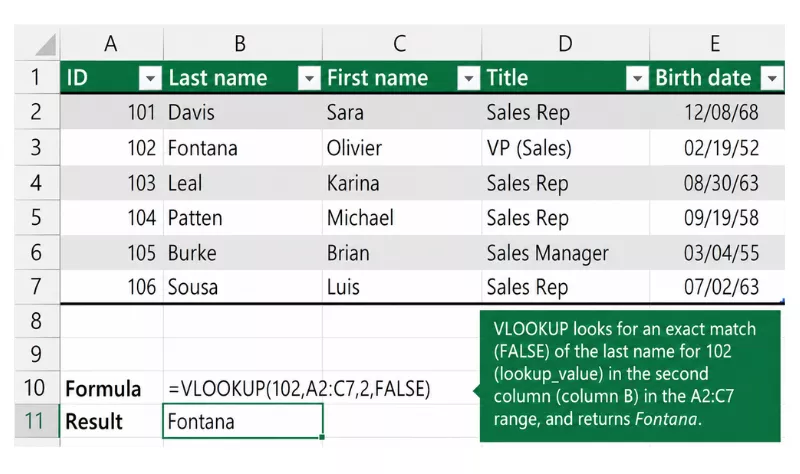
The Excel function VLOOKUP (Vertical Lookup) searches for a value in the first column of a table and returns a value from another column in the same row.
This is an excellent tool for finding related data like prices, employee names, or product details within large datasets. It is easy to understand and is used across all industries.
It works well with simple and structured data sets, but not with complex ones. It can be counterintuitive depending on the structure of the data, and can cause problems in more complex formulas.
Syntax of VLOOKUP()
Now, let’s explore the syntax for VLOOKUP().
=VLOOKUP(lookup_value, table_array, col_index_num, [range_lookup])
In the above formula, the following variables are introduced:
- lookup_value is the value you’re searching for. This may be a number, a text string, or a cell reference that contains the search value.
- table_array is the range of cells containing the data. The lookup_value should be located in the first column of this range.
- col_index_num is the number of the column to retrieve the value from, starting at 1.
- The logical value (TRUE or FALSE) is entered into range_lookup.
What Is XLOOKUP?
XLOOKUP is a modern Excel function that is similar to VLOOKUP or HLOOKUP, but more powerful. It’s more flexible, readable, and reliable. Unlike VLOOKUP, XLOOKUP enables you to set the lookup range and return range independently, eliminating many structural constraints.
The Excel function works with both vertical and horizontal data and provides advanced search functionality. It can be found in newer versions of Excel, including Microsoft 365 and Excel 2021. The enhanced design also makes it a popular lookup function for most recent users of Excel.
Syntax of XLOOKUP()
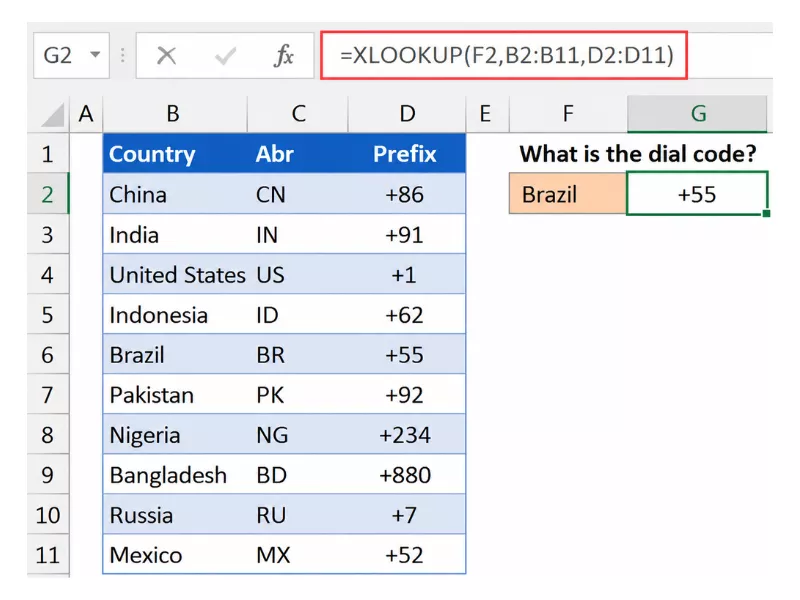
Let’s now take a look at the XLOOKUP() syntax. Notice that XLOOKUP() accepts more optional arguments than VLOOKUP().
=XLOOKUP(lookup_value, lookup_array, return_array, [if_not_found], [match_mode], [search_mode])
In the formula above:
- The value to search for is lookup_value.
- lookup_array is the range of cells containing the value to search.
- The range of cells that contains the value to return is return_array.
- if_not_found (optional) returns a value if no match is found. If no value is given, it returns #N/A.
- You can also optionally specify the type of match to perform with the match_mode parameter. The default is 0 for an exact match, and -1 for the next smaller item. 1 returns an exact match, or the next larger item. 2 is a wildcard character match.
- The search mode to use is set by search_mode (optional). 1 is used to search from first to last (default). -1 is used to search from last to first. 2 is used to perform binary search in ascending order. -2 is used to perform binary search in descending order.
Handling these sophisticated functions is a major part of advanced certifications, so if you’re struggling to prepare for your assessments, seeking professional Online Exam Help can give you the edge you need.
VLOOKUP vs XLOOKUP Performance: A Quick Overview
Now, let’s compare the advantages and disadvantages of two primary lookup functions in spreadsheet software. The following table is a quick reference of the main differences between XLOOKUP and VLOOKUP.
| Feature | VLOOKUP() | XLOOKUP() |
| Lookup Direction | Left to right only | Any direction (left or right) |
| Exact Match by Default | No (requires FALSE) | Yes |
| Column Index Required | Yes | No |
| Handling Column Changes | Breaks easily | Remains unaffected |
| Error Handling | Manual (IFERROR required) | Built-in |
| Return Multiple Values | No | Yes |
| Performance on Large Data | Comparable | Comparable (binary search mode available) |
| Excel Version Support | All versions | Excel 365, Excel 2021+ |
| Best Use Case | Legacy spreadsheets | Modern Excel workflows |
| Wildcard Support | Supported (exact-match mode) | Advanced (built-in support) |
| Dynamic Arrays Support | No | Yes |
XLOOKUP is a new function that supports lookup directions, exact matches, dynamic arrays, and error handling, while VLOOKUP is a legacy function that requires column index numbers and supports only left-to-right lookups in both old and new versions of Excel. The VLOOKUP alternative, XLOOKUP, is usually used in newer versions of Excel, while VLOOKUP is still available for older versions.
So if you’re wondering, ‘Should I use VLOOKUP or XLOOKUP?’ — both are important in different types of jobs. The best choice will depend on what you want to do and the type of data you’re working with.
At Buy Online Class Services, you can hire experts who can help you analyze your Excel using both VLOOKUP and XLOOKUP functions.
In Which Excel Assignments Can You Use VLOOKUP?
VLOOKUP is one of the most basic functions students will need to work with structured data and legacy spreadsheets. This function is the perfect fit for these four common assignments:
- Inventory Management System: This project allows you to associate various Product IDs with specific prices. To make sure the formula gets the right data for each SKU, you will need a VLOOKUP exact match.
- Student Grading Rubric: This assignment requires students to use letter scores to grade a range of scores. It’s a great use case for VLOOKUP approximate match to locate a score within a desired range.
- Employee Payroll Calculator: This is used to reference Hourly Rates from a Master List on a Weekly Timesheet. It makes it easier for students to understand how to join two or more tables with a common key.
- Sales Tax Database: This project will involve finding tax percentages for a state or zip code. It helps you organize data vertically in a professional report.
Of course, if you are unable to do these tasks or don’t have enough time, you can always hire an expert to do my excel homework so that your formulas are correct.
When to Use XLOOKUP Instead of VLOOKUP?
If greater flexibility is required, or the data needs to be manipulated in a more advanced way, then XLOOKUP is a better option for assignments. XLOOKUP is used when the search value is not found in the first column, since XLOOKUP searches both left and right without altering the table structure. This removes the need for the more complicated “Index and Match” functions in previous versions of Excel.
The other great advantage is in dealing with more complicated data sets where XLOOKUP with multiple criteria is needed. XLOOKUP allows searching based on multiple conditions without having to build “helper columns.” It also makes your work easier because it has built-in error handling — the cell shows whatever you specify when no match is found, rather than a clumsy #N/A.
When a horizontal reference is used in the assignment, XLOOKUP eliminates the need to use HLOOKUP altogether. It’s far more stable as it does not rely on the column index numbers to refer to the cells, so it will not be affected should you add a new column in your table. Here are some examples:
1. Dynamic Sales Performance Tracker
This project frequently involves finding values based on two or more conditions, such as “Region” and “Product Name”. An XLOOKUP multiple criteria approach is used here to get results without making an ugly helper column. It will help you maintain a clean, professional sheet.
2. Reverse Employee ID Directory
For many data sets, the unique ID will be the rightmost field after the person’s name. VLOOKUP only searches to the right! Unlike VLOOKUP, XLOOKUP allows you to search in both directions. Employee ID will be found by name, regardless of column order.
3. Smart Inventory Audit with Custom Error Alerts
If you are doing an assignment that requires a record of warehouse stock, you want your sheet to be tidy. VLOOKUP displays the strange error text “#N/A” for missing items. Using the “if_not_found” argument, you can display a clear message such as “Out of Stock” when your lookup value has no match. This feature will make your homework easier to read.
4. Character & Content Analysis Dashboard
This assignment may require you to extract an entire line of data at once. For instance, you can search for a character’s name and retrieve the “Episodes,” “Scenes,” and “Rating” in a single operation. XLOOKUP can automatically populate multiple adjacent cells with a single formula, as it can be used to create dynamic arrays.
If students have trouble getting a handle on these new functions and are dealing with a hectic schedule, it may be useful for them to have a pro that can Take My Online Class and get ahead.
Conclusion
Now that you know what is the difference between VLOOKUP and XLOOKUP, the decision of which of these functions to choose depends on your version of Excel and the needs of your project. VLOOKUP is still a good old tool for simple, traditional tasks, but XLOOKUP is generally the stronger choice for complex or flexible scenarios. Learning both will equip you with the skills needed for any career or academic path you choose.
Frequently Asked Questions
What is XLOOKUP vs INDEX MATCH?
XLOOKUP is a modern, simpler, single function that includes error handling and flexibility in search directions. INDEX/MATCH is a basic function pairing that is widely used in older versions of Excel and does a very robust job with a multi-criteria array or a heavily nested array.
Can XLOOKUP replace VLOOKUP?
Yes, XLOOKUP is supposed to be a modern, complete functional replacement for the VLOOKUP and HLOOKUP functions, along with INDEX/MATCH. XLOOKUP can replicate nearly all VLOOKUP functionality, and it overcomes significant drawbacks such as the inability to search left and formula breakage when columns are added between the search range and the data range.
Does XLOOKUP work in all Excel versions?
XLOOKUP is not supported in all versions of Excel. It is available only in the modern versions, Microsoft 365, Excel 2021, Excel 2024, and Excel for the Web. In older desktop versions such as Excel 2019, 2016, 2013, etc., it will return a #NAME? error.
How to do approximate match in VLOOKUP?
In VLOOKUP, to match approximately, set the last argument range_lookup to TRUE (or 1), or omit it.
Write your formula as:
=VLOOKUP(lookup_value, table_array, col_index_num, TRUE)
The first column of your reference table should be sorted in ascending order to locate the largest value in that column that does not exceed your lookup value.
Which software platforms support both VLOOKUP and XLOOKUP formulas?
The main software platforms that natively support both VLOOKUP and XLOOKUP formulas include Microsoft Excel, Google Sheets, and Row Zero.
How can I switch from using VLOOKUP to XLOOKUP in a spreadsheet application?
To switch from VLOOKUP to XLOOKUP, you need to replace the entire data table range and column index number with two separate, specific ranges: one for the column you are searching, and one for the column containing the result.
Which function is faster for large datasets: VLOOKUP or XLOOKUP?
XLOOKUP is vastly superior for overall stability, flexibility, and processing wide tables. However, raw speed tests show that VLOOKUP can calculate faster (often by 30% to 40%) when strictly executing a standard, single-column exact match on tight ranges.

- Java Data Structures: Know the Types of Data Structures and Algorithms - September 8, 2026
- VLOOKUP vs XLOOKUP: Which Excel Formula Should You Use in College Assignments? - August 11, 2026
- Moodle vs Canvas LMS: Which Learning Management System Is Better in 2026? - July 24, 2026

 ABOUT BUYONLINECLASS
 7,500+
 5621+
5621+